View All Assets
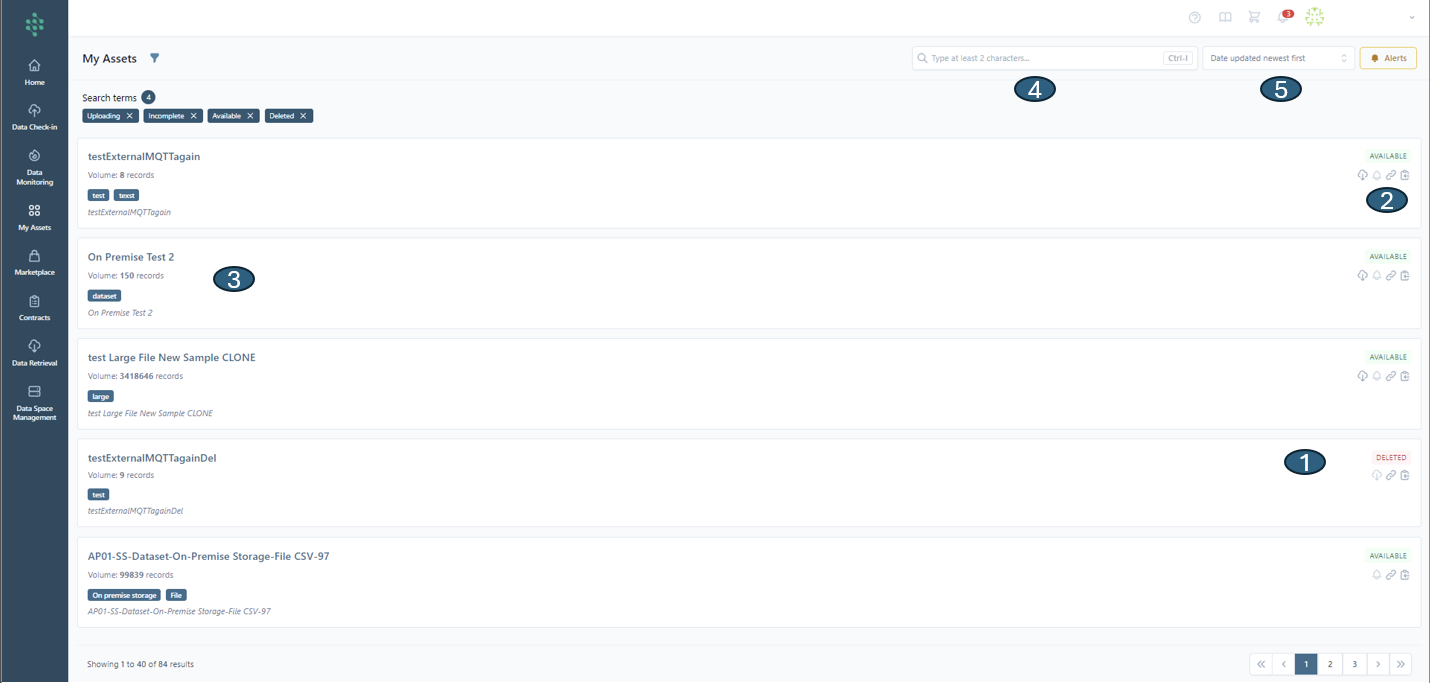
You can access a comprehensive list of asset profiles associated with your organization or those obtained by it, in the Assets View by selecting the My Assets Tab, as illustrated in the subsequent figure.
For each asset listed, you can view details such as its status (1), a range of actions (2) available for editing, removing the asset or set this asset up for retrieval, by creating a retrieval query and the number of records within the asset (3). Additionally, you have the option to search (4) for specific assets or organize (5) the assets list using various sorting criteria (asset title, its execution status, the date it was created, or when it was last updated).
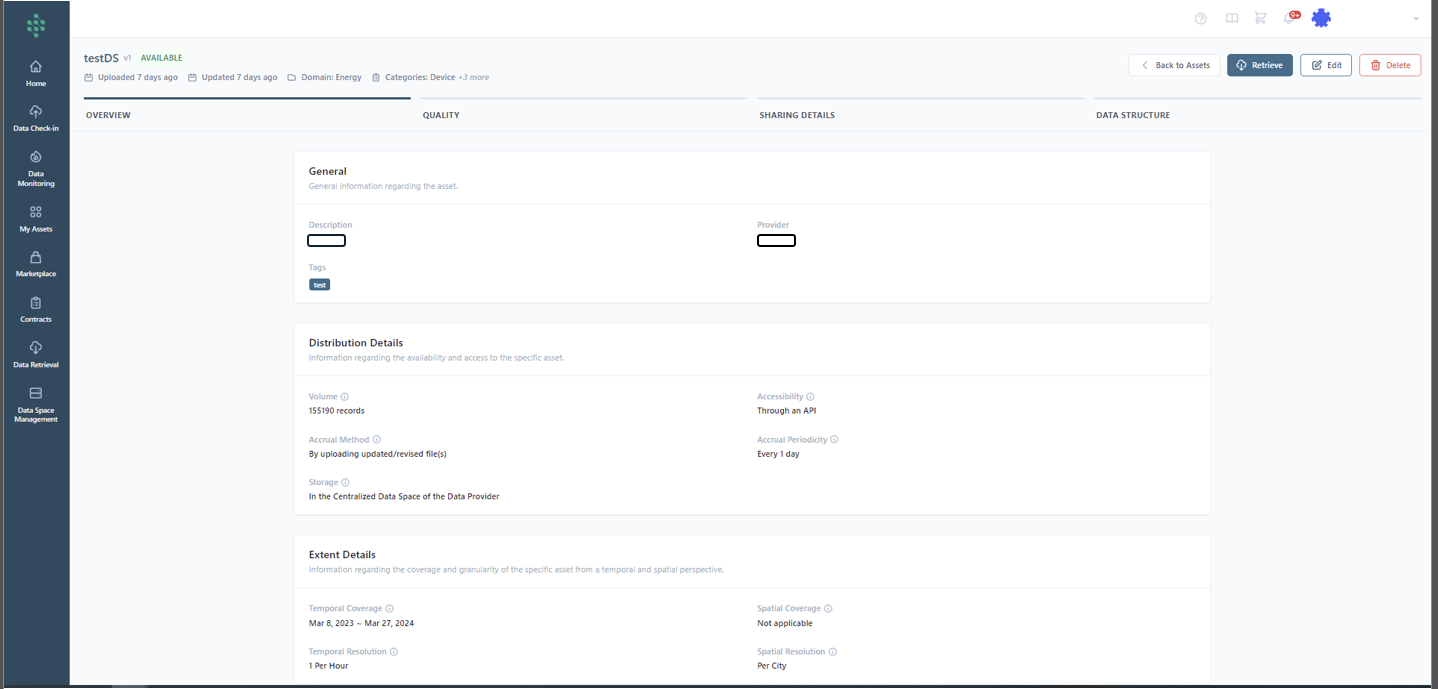
By selecting an asset, you may navigate to its profile containing the generic information, the data quality-related information, the sharing details and the data structure (including a sample of the data).
Hint
Your asset can be in one of the following statuses at any given time:
- Available: The asset is ready for use, complete with its metadata.
- Deleted: The asset becomes unavailable following the removal of a specific Asset Profile.
- Uploading: The asset has been initialized but the data itself is not yet accessible.
- Incomplete: The metadata for the asset is still pending completion.
Hint
Sorting options include:
- Title: Sort by the title of the asset.
- Status: Sort by the current status of the asset.
- Created: Sort by the date the asset was created.
- Last updated: Sort by the date the asset was last updated.
Hint
The ability to delete or edit a data asset is exclusive to assets owned by your organization and does not apply to those acquired from other organizations.
Hint
Users have the capability to set up alerts for particular assets, by clicking the “Alerts” button at the top-right of the page, which can be triggered by issues such as delays in asset timeliness, asset completeness falling below a certain threshold, quality enhancements exceeding a specified limit, or the failure of the associated data check-in pipeline.
Hint
Users have the capability to look up for assets, whether owned by them or acquired by their organization, by utilizing various filters accessible through the filter panel icon. These filters are designed to streamline the search process:
- Status: Indicates whether the asset is available, incomplete, uploading, or has been deleted.
- Category: Describes the type of the asset
- Accessibility: Defines how the data can be accessed, e.g., via an API, streaming, or via download.
- Accrual Periodicity: Shows how often data is collected or updated
- Accrual Method: Describes how data is accrued, whether through file uploads, streaming mechanisms, or APIs.
- Temporal Resolution: Indicates the granularity of time with which data is recorded or reported.
- Spatial Coverage: Covers the geographical scope of the data
- Timeliness: Reflects the currentness of the data
- Storage: Specifies where the data is stored, such as in a centralized or federated data space.
- Temporal Coverage: Marks the time range that the data covers.
- Access Level: Identifies who can access the data.
- Related Pipeline: Allows linking to associated data check-in pipelines.
- Asset Origin: Points to the source or origin of the asset.