Manage the Organization's Wallet – Legal Representative Only
Initially, the organization’s manager is prompted either to import an existing wallet or to create a new one. As outlined in the View all contracts section, importing an existing wallet involves entering the private key and the wallet's password, as illustrated in the figure provided.
[Image Placeholder]
For organizations without a wallet, a new wallet can be generated in the Marketplace's Contracts view. This process requires setting a wallet password for encryption purposes, as shown in the next figure. Upon clicking the Create button, the SYNERGIES platform begins the wallet's generation and encryption process.
[Image Placeholder]
Alternatively, the legal representative can import an existing Ethereum wallet that their organization may have.
Hint
It is important to note that this password will be utilized for signing all contracts on the SYNERGIES Platform, as detailed in the sections for acquiring a single Data Asset and acquiring multiple Data Assets through the Cart. There is no password reminder functionality for the Ethereum wallet so you need to ensure you always remember this password.
Hint
Unless a wallet is created, no transactions (to share/acquire data) can be performed.
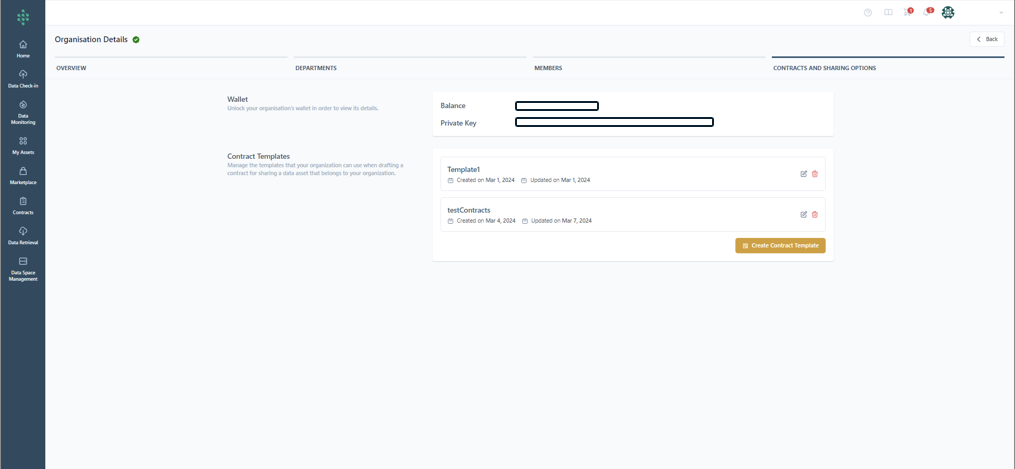
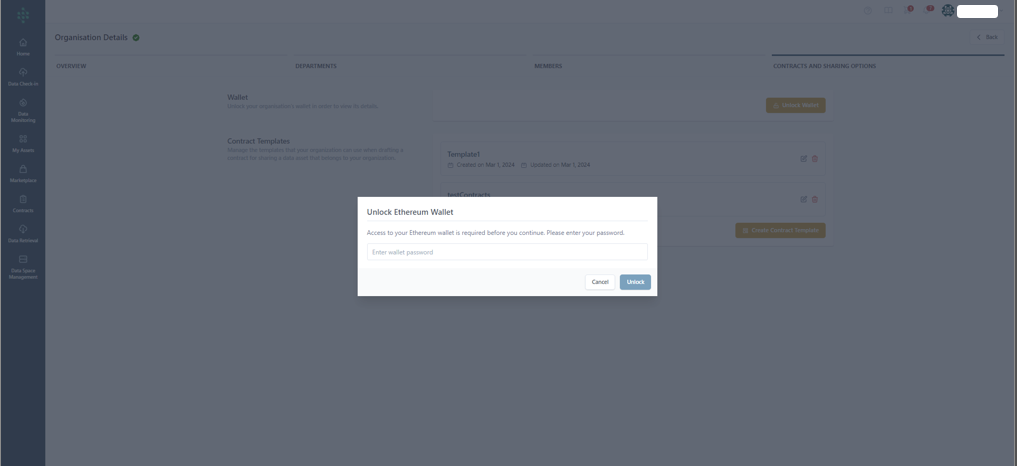
Within the Organization Details, under the wallet tab, when attempting to access the organization’s wallet, the legal representative needs to provide the password in order to unlock the organization’s Ethereum wallet.
Next, the organization’s legal representative can access information regarding the wallet’s balance and the private key (should it be needed for use in other applications).