Manage the Models and the Results of an Analytics Pipeline, in My Assets
By accessing the “My Assets” menu option, you may view the Results and the Models (in respective tabs) to which you have access or which you own.
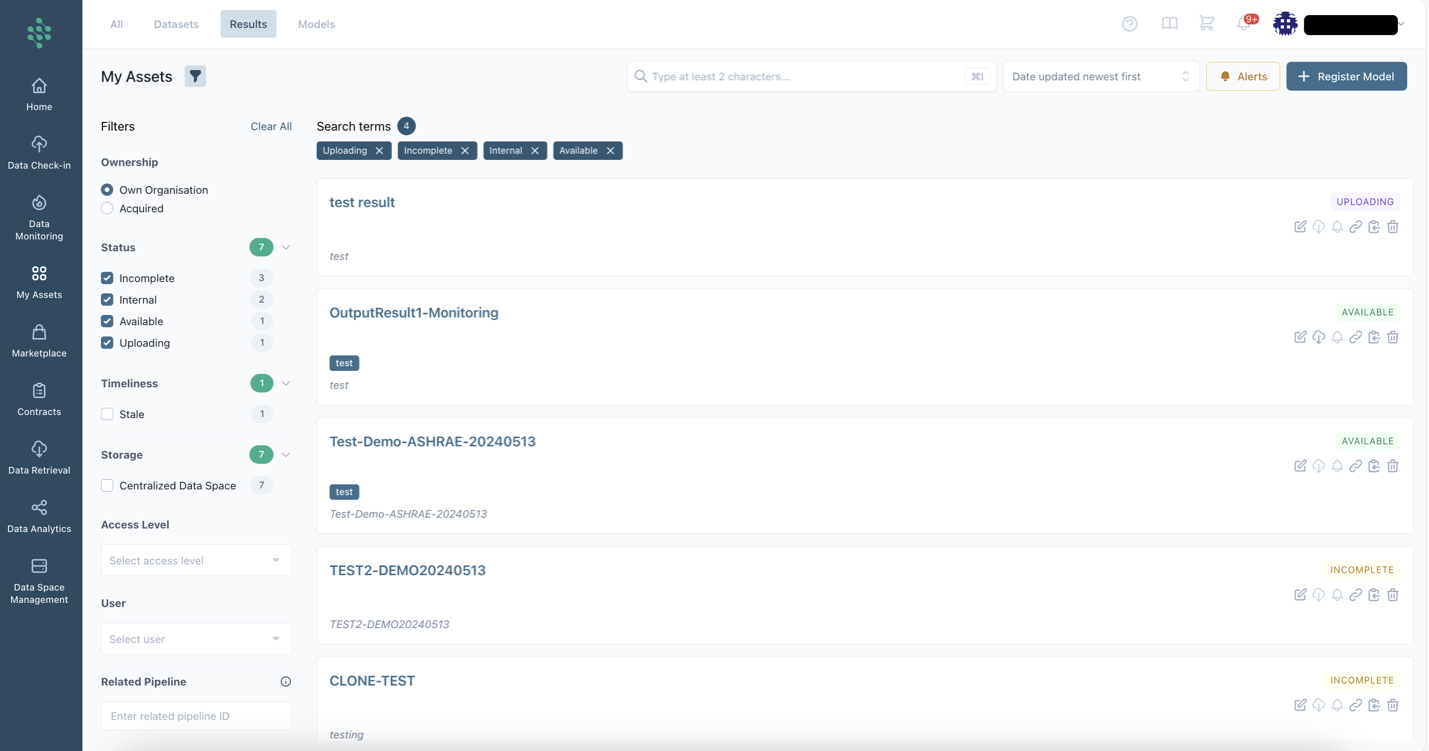
Similar to the dataset view, for each result listed, you can view details such as its status, a range of actions available for editing, removing the result or set this result up for retrieval by creating a retrieval query. Additionally, you have the option to search for specific results or organize the results list using various sorting criteria (result title, its execution status, the date it was created, or when it was last updated).
Hint
Users have the capability to look up for results, whether owned by them or acquired by their organization, by utilizing various filters accessible through the filter panel icon
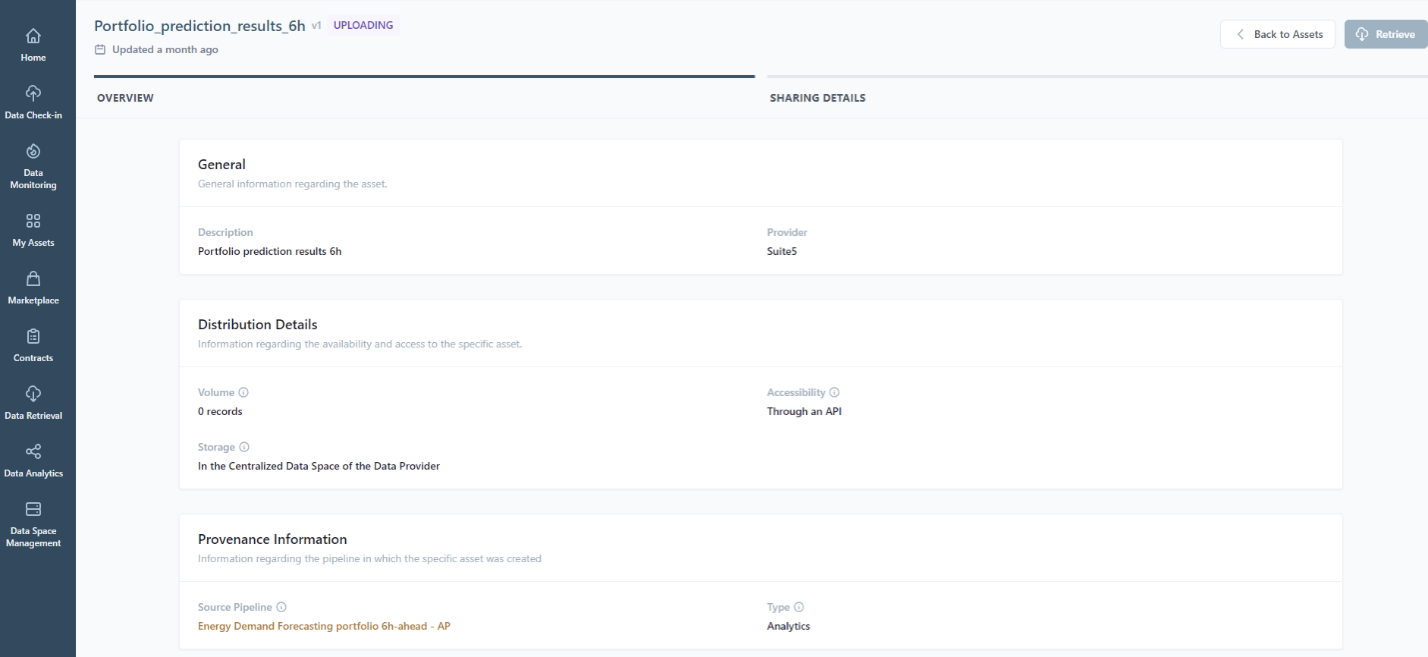
For each result, you can access and adjust the metadata, including general particulars, distribution specifics, and provenance information considering the analytics pipeline generating the relevant result
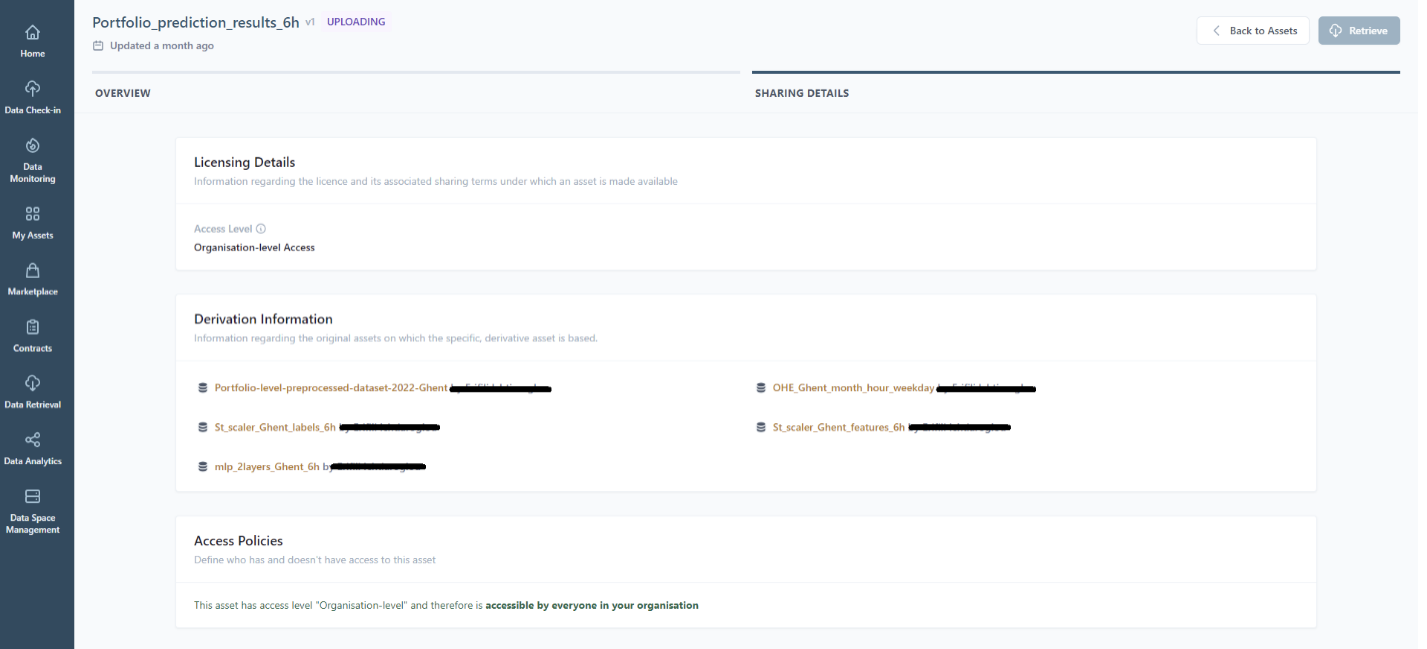
In addition, licensing terms and access policies are also defined as part of the metadata configuration, considering also the derivation information (original assets on which the specific derivative result is based) as illustrated below.
Hint
In scenarios where data assets from other organizations contribute to the creation of a result (e.g., by providing input datasets), explicit permission is required to include the result in the SYNERGIES Data Marketplace.
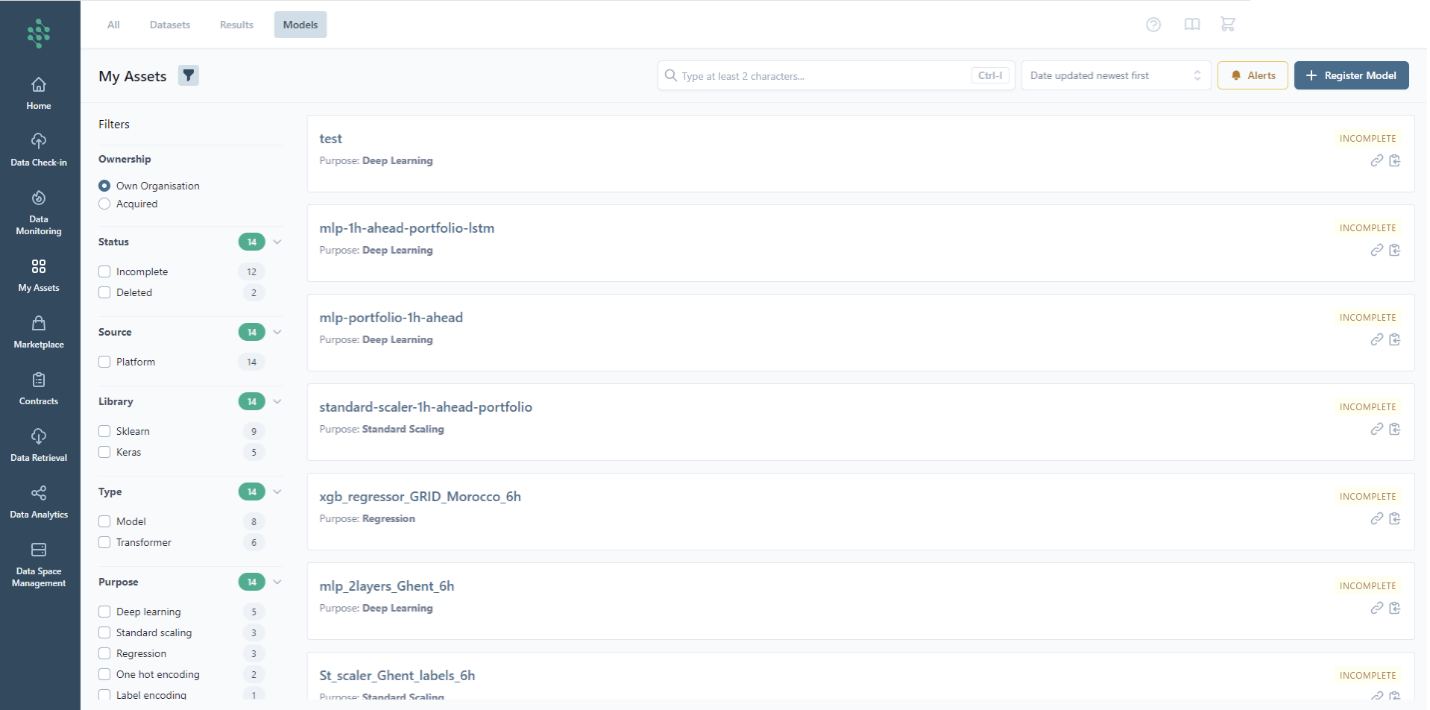
The same functionality applies to the models listed under the respective tab, as illustrated below. For each model listed, you can view details such as its status and a range of available actions (e.g., navigate to the related analytics pipeline). Additionally, you have the option to search for specific models or organize the models list using various sorting criteria (model title, execution status, creation date, or last updated date).
Hint
Users can look up models, whether owned by them or acquired by their organization, using various filters accessible through the filter panel icon. In addition to the filters applied for the datasets/results view, the following filters are available in the models view:
- Source: whether the model was configured on the platform or uploaded externally as a pretrained model.
- Library: the library used for model configuration.
- Type: the type of model configured.
- Purpose: the purpose of the model.
- Algorithm: the type of algorithm used for the model.